
How to Recover Data from a Mac
Lost files don’t always mean lost forever. Here’s every option from easiest to last resort.
1. Check Time Machine First
If you have a Time Machine backup (on an external drive or NAS), this is your fastest recovery option. Go to System Settings → General → Time Machine and connect your backup drive. You can restore individual files or your entire system.
Don’t have a Time Machine backup? Set one up after this — it’s the single best thing you can do to protect your data.
2. Check iCloud Drive
If iCloud Drive is enabled, your Desktop and Documents folders may be synced to the cloud. Log into iCloud.com and check for your files there. Also check Recently Deleted in iCloud — files are kept for 30 days.
3. Check the Trash
Accidentally deleted files sit in the Trash until it’s emptied. Open the Trash and restore what you need.
4. Use Disk Utility to Mount the Drive
If macOS won’t boot but the drive is intact, boot into Recovery Mode (hold Command+R on Intel, or hold the power button on Apple Silicon) and run Disk Utility → First Aid. This can repair directory corruption and make the drive mountable again.
5. Data Recovery Software
Apps like Disk Drill or PhotoRec can scan a drive for recoverable files even after emptying the Trash or formatting. Important: install the recovery software on a different drive — never on the drive you’re trying to recover from, as new writes can overwrite recoverable data.
6. Professional Data Recovery
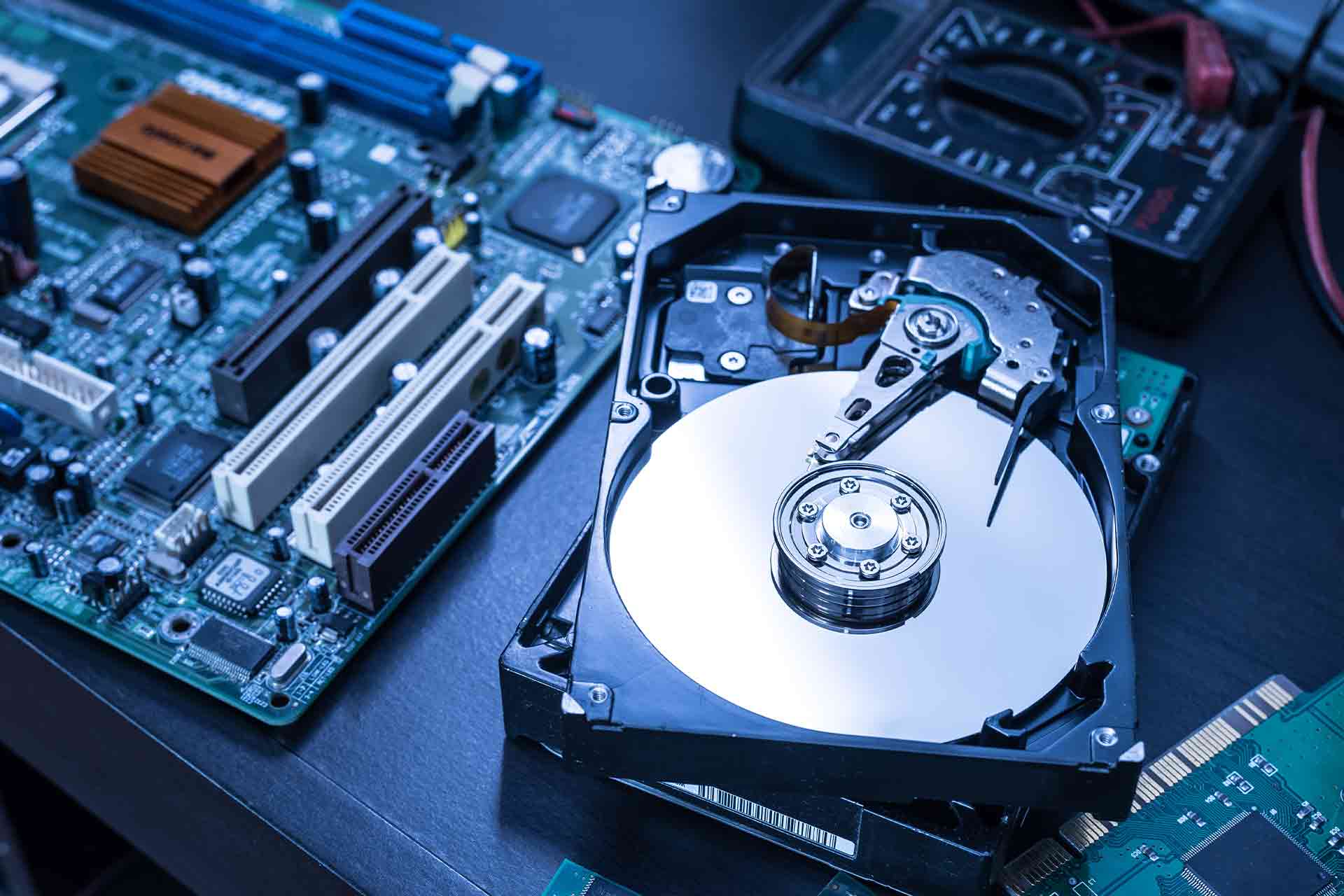
If the drive has physically failed (clicking, not mounting, SSD controller failure), software tools will not work. Professional recovery involves:
- Clean room disassembly and platter transplant (HDDs)
- NAND chip-off recovery (SSDs)
- Specialised hardware to bypass failed controllers
MacExperts offers professional data recovery for failed Mac drives. No data recovered, no fee. The most important thing: stop using the drive immediately and bring it to us — every read attempt on a failing drive risks overwriting recoverable sectors.